Scrolling screenshots and image editing on Mac
ClipOrigin captures regions, windows, displays and scrolling areas, then opens the result in the same image workspace used by clipboard images. Scrolling capture supports vertical and horizontal directions, with automatic or manual scrolling in the direct-download edition.
On this page
Capture a scrolling region
Capture long conversations vertically or wide tables horizontally. Continuous capture matches overlapping content, keeps fixed headers and columns from repeating, and handles shorter movements near the end. Inspect the finished image before sharing.
- Open the target page or application and let images finish loading.
- Press Control–Option–R for a vertical scrolling region, or Control–Option–Shift–R for a horizontal one.
- Select the region, then use automatic or manual scrolling. Keep sufficient overlap between successive views.
- Finish capture and inspect the stitched image. Correct a seam or recapture a smaller area if content shifted.
Annotate without overwriting the original
Double-click the corner preview to open the editor. Add arrows, text, numbered steps, highlights, crops or solid redaction. Backgrounds, padding, shadows and image combinations help prepare a clear result.
Editing uses a non-destructive document. The original material stays available, while ordinary copy and drag operations use the finished image. Screenshot preview, history saving and automatic copying can be configured independently.
Choose a shareable export or an editable project
Export PNG, JPEG, HEIC or WebP for an image, or segmented PDF for long output. Save a .cliporiginshot project when you need to revise the annotations later.
For material that needs redaction, turn off automatic screenshot copying, apply a solid cover and inspect the flattened export before sharing. An editable project retains original assets and is not an appropriate redacted deliverable.
Where scrolling capture needs care
Animations, live feeds, lazy loading, fixed headers and virtualized lists can change between captures. They may need manual scrolling, a smaller selection or seam correction.
Scrolling capture does not bypass access controls or reconstruct content that an application never displays. Test the actual page layout rather than assuming every long page can be stitched perfectly.
Adjust a crop again later
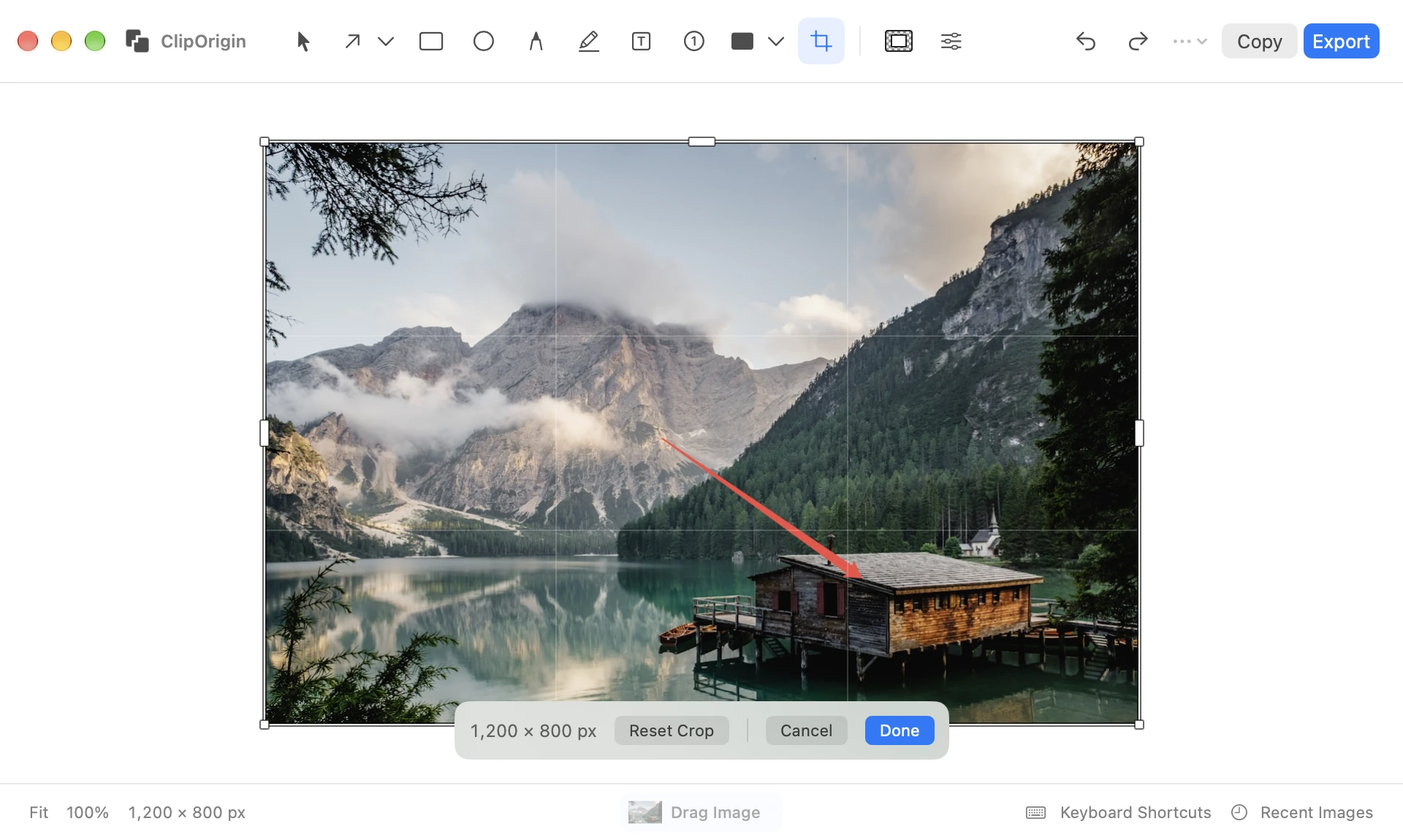
Drag any of the eight crop handles or move the selection. Hold Shift to keep the aspect ratio. Return applies the crop; Escape cancels. Reopen Crop to recover retained source content and choose a new area. Copying or exporting applies pending crop changes.
Questions & answers
Can I capture a wide table?
Yes. Use horizontal scrolling capture and select the part that moves horizontally. Review repeated headings and fixed columns at the seams.
Can I edit an image from another screenshot app?
Yes. The image workspace also accepts images from files and clipboard history. You do not need to recapture the image with ClipOrigin.
Try it on your Mac.
14-day full-feature trial. macOS 15+ and Apple Silicon.
Download ClipOrigin