Upload images to your own image host
Upload edited screenshots or clipboard images to your own S3-compatible storage, Cloudflare R2, NodeImage or ImgBB account, then use the returned link in a document or message.
On this page
Connect your provider
Open Settings → Image Hosting, add an account and choose a default. You can keep multiple accounts. S3 and R2 need an upload endpoint and a separate public image URL; R2 uses S3 access keys. NodeImage and ImgBB use API keys. Credentials are stored in macOS Keychain.
Edit, upload, copy the link
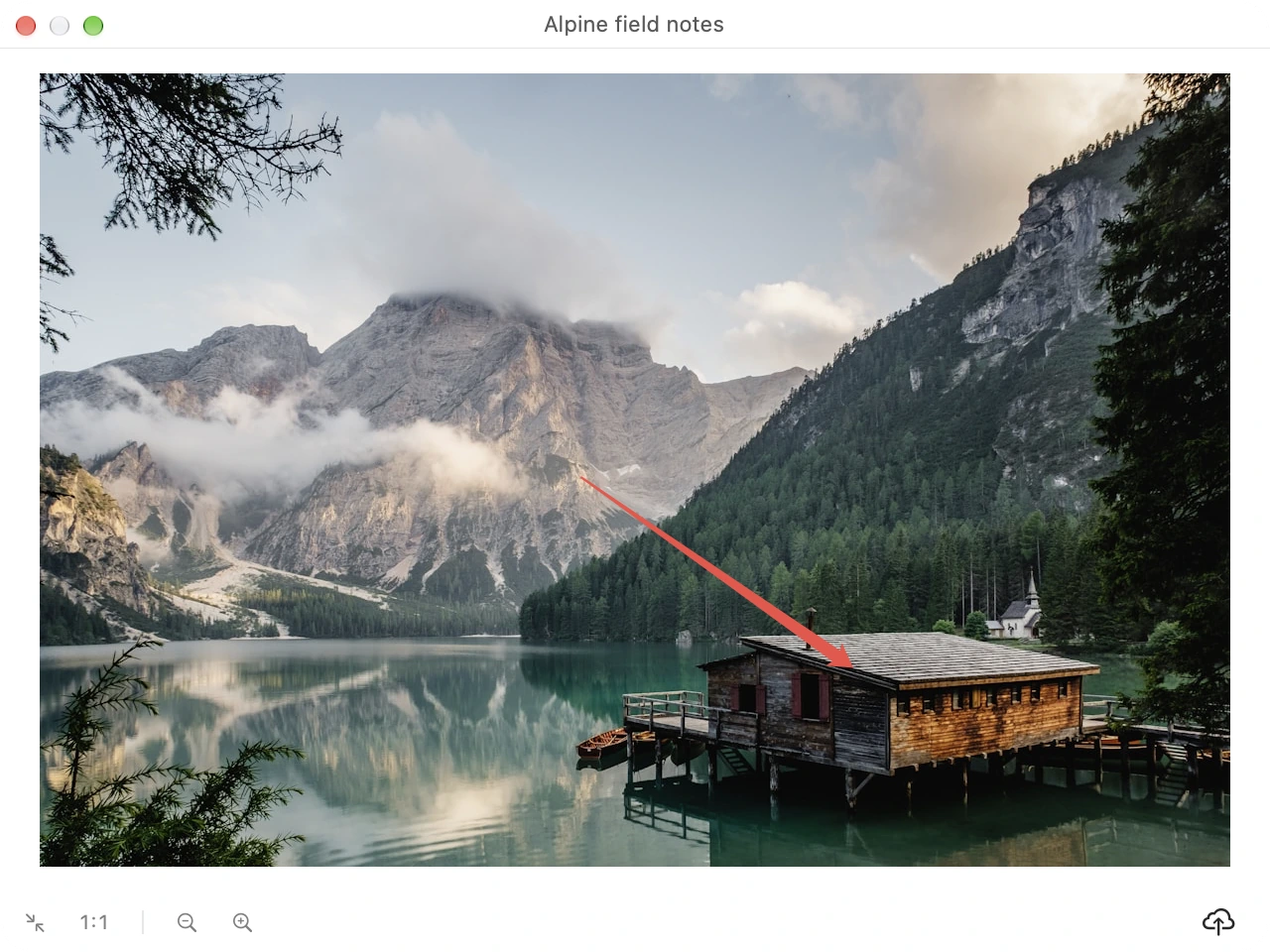
Use the cloud button in the screenshot preview, or Upload Image in an image card’s context menu. The current edit is uploaded at full resolution, including annotations, redactions and background. Progress appears beside the image. Uploads go directly from your Mac to your chosen provider.
Smart Lossless and Markdown are the defaults. URL, HTML and BBCode are also available. A successful upload copies the link only if you have not copied something else meanwhile. Otherwise, use Copy Link in the upload menu or Settings → Image Hosting → Upload History.
Your files, your provider
ClipOrigin provides no shared hosting and never uploads clipboard content automatically. Original files stay unchanged. Clearing local upload history does not delete remote images. Save and Test Upload sends a generated sample to your provider; delete that sample on the provider’s website when finished.
Try it on your Mac.
14-day full-feature trial. macOS 26+ and Apple Silicon.
Download ClipOrigin