Translate screen text on Mac with OCR
Select text anywhere on screen and translate it in one step, with Apple Intelligence on your Mac or an AI service you choose, such as DeepSeek, Qwen, OpenAI, Gemini or a local Ollama model.
On this page
Translate a region in one step
Use it for a foreign-language web page, a colleague’s screenshot, a paused video or an app that does not let you select text. Recognition runs on your Mac with Apple Vision; only the translation step uses the service you choose.
- Press Control–Option–Y, the default recognize-and-translate shortcut.
- Click a highlighted paragraph, or drag over the text you want.
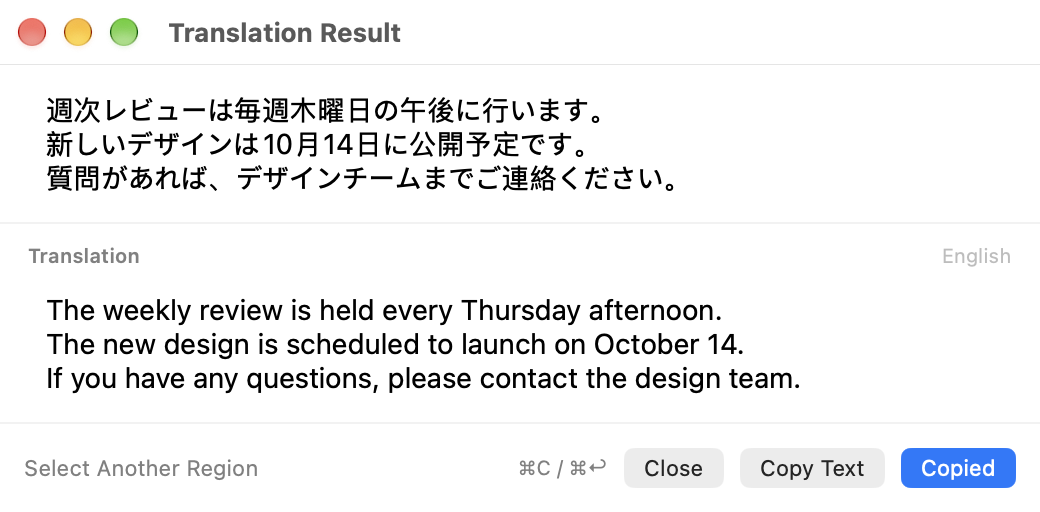
- The original appears at the top of the window and the translation streams in below. When it finishes, the translation is copied; paste it with Command–V.
Translate text you have already recognized
If the result window is open after Control–Option–T, click Translate or press Command–T. In the image editor, choose Recognize and Translate Text from the More menu.
The window keeps the original and the translation together and stays above the app you are reading from until you close it. Copy Text copies the original; Copy Translation copies the translation.
Choose a translation service
Open Settings → Text Recognition & Translation. On a Mac with Apple Intelligence, choose Apple Intelligence to translate with Apple’s on-device model; no account or key is needed.
Otherwise choose OpenAI-Compatible API. Presets fill in the address and a fast default model for DeepSeek, Qwen (Mainland China or International), OpenAI, Google Gemini, OpenRouter and Ollama. Paste your API key and click Test Translation. You can change the model or enter any other compatible endpoint.
Pick a target language or follow the system language. Text that is already in the target language is translated into English.
What is sent, and where
Nothing is sent until you translate. With Apple Intelligence or a local Ollama model, the text stays on your Mac. With a cloud service, the recognized text goes directly from your Mac to that provider with your key, and the provider’s own terms apply. ClipOrigin does not run a translation server.
Check recognized text for personal or confidential information before sending it to a cloud service. Your key is stored in your Mac’s keychain.
Questions & answers
Which edition includes translation?
The direct-download edition from version 1.28.0. The App Store edition will receive it in a later update.
Can I change the shortcut?
Yes. Change Recognize and Translate Screen Text in Settings → Shortcuts. The default is Control–Option–Y.
Why does the translation not follow the original line breaks?
Translation joins lines that the layout broke in the middle of a sentence and keeps real paragraphs, lists, code and names. OCR can misread small or low-contrast text, so enlarge the source or select a tighter region if a result looks wrong.
Try it on your Mac.
14-day full-feature trial. macOS 15+ and Apple Silicon.
Download ClipOrigin